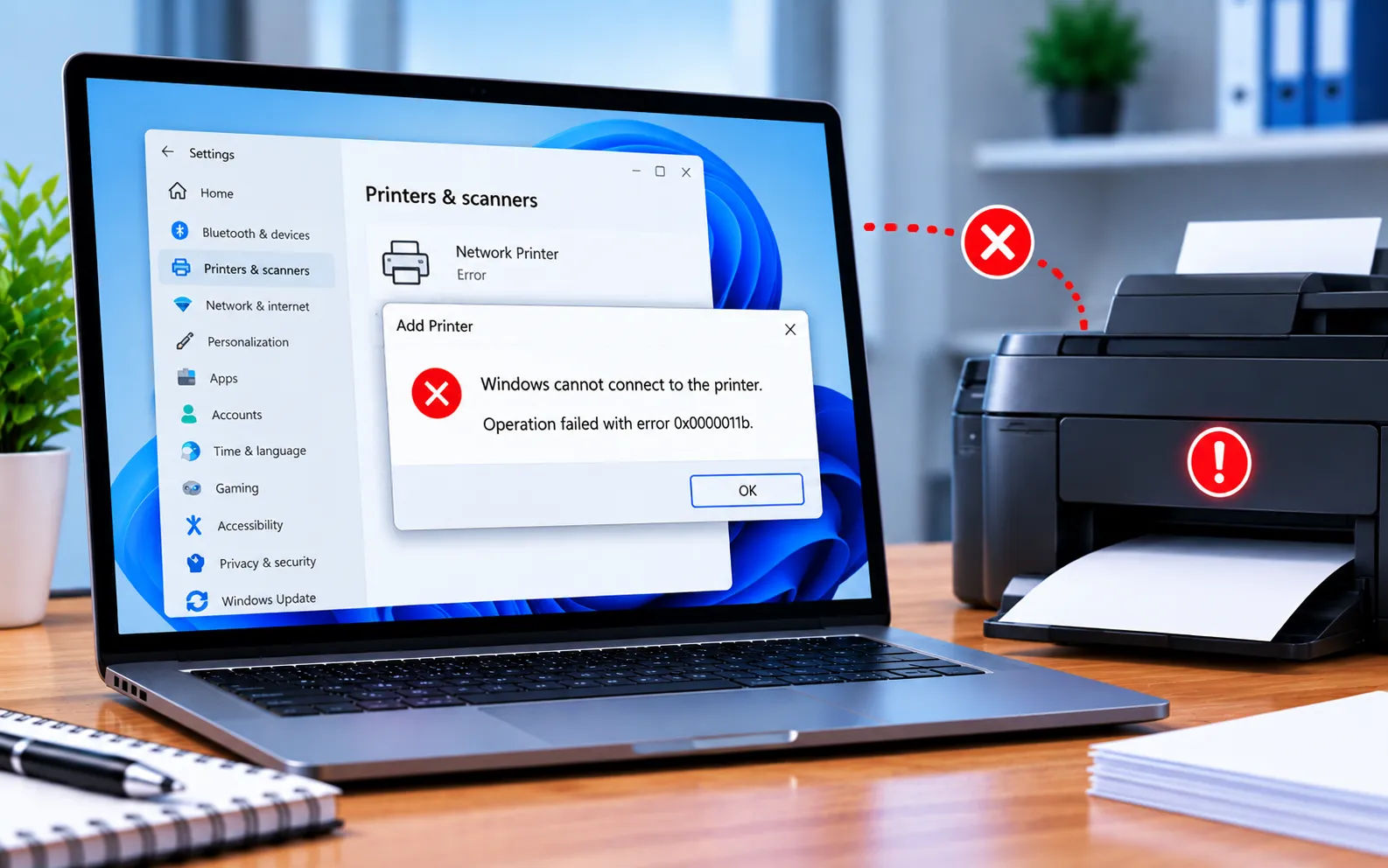
The Windows 11 22H2 update can fail on affected systems due to cumulative updates KB5025239 and KB5022497, related to .NET and system drivers. On some devices, newly installed printer drivers can interfere with Windows Update itself.
This guide explains the known printer-related effects and the steps to fix your Windows updates.
Known Printer Issues from KB5025239 and KB5022497
Affected systems have reported the following issues after these updates:
Color printing may become unavailable.
2-sided (duplex) printing may stop working.
Higher print resolutions may be unavailable, along with general connectivity issues to the printer.
Microsoft has explained that Windows needs an active connection to the printer to identify and enable all of its features. According to Microsoft, reinstalling the printer forces Windows to download and reinstall the correct drivers, which typically resolves these problems. Microsoft also advises against manually installing the Windows 11 2022 Update on affected systems — let it install automatically once the fix is ready. If Windows doesn’t automatically find a new driver after you re-add the printer, check the manufacturer’s website and follow their installation instructions directly.
Here’s how to troubleshoot your Windows updates:
Stop the Windows Update and Cryptographic services
Open Task Manager, go to the Services tab, find wuauserv (Windows Update) and cryptSvc (Cryptographic Services), and stop both. These services manage downloading and installing Windows updates.
Rename the SoftwareDistribution folder
Open File Explorer, navigate to C:\Windows\SoftwareDistribution, and rename it to SoftwareDistribution.old. This clears the cached update data that may be causing the failure.
Restart your computer
Restarting automatically re-enables the Windows Update and Cryptographic services you stopped in step 1.
Check for updates again
Go to Settings → Windows Update and check for updates again. Windows will rebuild the SoftwareDistribution folder and attempt the update fresh.
Reinstall your printer if issues persist
If printing problems continue after updating, remove and re-add your printer in Settings → Bluetooth & devices → Printers & scanners. This forces Windows to download fresh drivers, which resolves most of the reported issues.
Still Not Resolved?
If reinstalling your printer doesn’t restore full functionality, check your printer manufacturer’s website for the latest driver and installation instructions. Our experts are here to assist you — Chat with a specialist — for more technical support.
We are an independent technical support provider and are not affiliated with, endorsed by, or sponsored by Microsoft.
FAQ
Why do KB5025239 and KB5022497 cause printer issues?
Newly installed printer drivers on affected systems can interfere with Windows’ ability to detect printer features like color, duplex printing, and higher resolutions.
Should I manually install the Windows 11 2022 Update on an affected system?
Microsoft advises against it — let the update install automatically once the fix rolls out, rather than forcing it manually on a system already showing these issues.
Will reinstalling my printer fix the missing features?
In most cases, yes. Removing and re-adding the printer forces Windows to download and reinstall the correct drivers, which typically restores color, duplex printing, and higher resolutions.
Will renaming the SoftwareDistribution folder delete my files?
No. This folder only holds temporary update data — renaming it doesn’t affect your personal files or installed applications.
