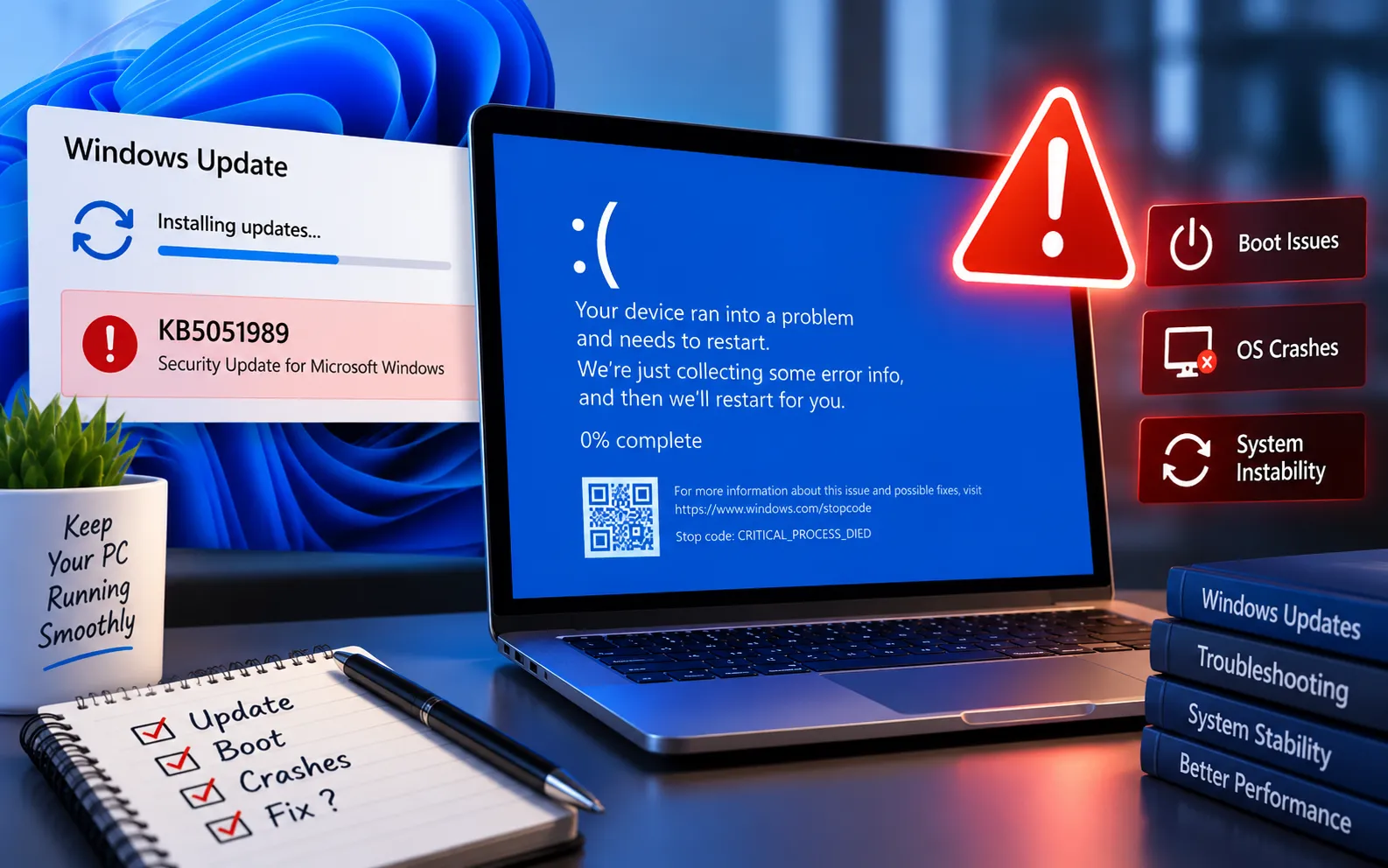
Microsoft released the Windows 11 cumulative update KB5051989 on February 11, 2025, with security and quality improvements. However, some users have reported problems after installing it, including installation difficulties and general system instability, discussed widely on user forums.
This guide explains what Microsoft has officially acknowledged about KB5051989, what has only been reported by users, and the troubleshooting steps you can try if your system is unstable after installing it.
What Microsoft Has Officially Acknowledged
Microsoft’s official release documentation for KB5051989 lists a specific set of known issues and improvements. Boot failures and general operating system crashes are not listed among them — this means reports of crashes and instability circulating online should be treated as user-reported problems rather than issues Microsoft has officially confirmed.
The known issues Microsoft does document for this update involve OpenSSH, certain Citrix components, and USB-connected dual-mode printers. If your problem doesn’t match one of these, it’s likely a device-specific conflict rather than a widespread bug in the update itself — which is good news, since device-specific issues are usually fixable with standard troubleshooting.
Here’s how to fix instability after installing KB5051989:
1
Uninstall the update
Press Win + I to open Settings, then go to Windows Update → Update History → Uninstall Updates. Search for KB5051989, select it, and click Uninstall. This is the fastest way to restore stability if the update is the direct cause.
2
Run System File Checker (SFC) and DISM
Open Command Prompt as administrator. Run sfc /scannow to scan for and restore corrupted system files. Then run DISM /Online /Cleanup-Image /RestoreHealth to repair the underlying Windows system image — these two together fix most update-related corruption issues.
3
Perform a clean boot
Open msconfig and disable all non-Microsoft services and startup items. Restart your PC and check if the instability continues. This helps narrow down whether a third-party app or driver is conflicting with the update, rather than the update itself being faulty.
4
Check for driver updates
Update every hardware driver on your system, especially your graphics and chipset drivers — these are the most common source of instability after a Windows update, since outdated drivers often haven’t been tested against the latest system files.
Looking for More Assistance
If you’ve uninstalled the update, run SFC/DISM, tried a clean boot, and updated your drivers — but the instability continues — the cause may need a closer, device-specific diagnosis. Our experts are here to assist you — Chat with a specialist — and they’ll help resolve any issues you may have.
We are an independent technical support provider and are not affiliated with, endorsed by, or sponsored by Microsoft.
FAQ
Does Microsoft acknowledge crashes caused by KB5051989?
No. Microsoft’s official documentation for KB5051989 does not list boot failures or general crashes as known issues — only problems involving OpenSSH, certain Citrix components, and USB dual-mode printers are confirmed.
Will uninstalling KB5051989 fix my system instability?
In many cases, yes. If problems started right after installing the update, removing it via Windows Update → Update History → Uninstall Updates is usually the quickest way to confirm and fix the issue.
Will I lose data if I uninstall a Windows update?
No. Uninstalling a cumulative update like KB5051989 removes the update package only — it does not delete your personal files, documents, or installed applications.
What should I check first if my PC is unstable after a Windows update?
Start with your graphics and chipset drivers — outdated drivers are the most common cause of post-update instability — then run SFC and DISM to rule out corrupted system files before uninstalling the update itself.
Tags: KB5051989 boot failure, KB5051989 update problems, uninstall KB5051989, Windows 11 BSOD error, Windows 11 cumulative update February 2025, Windows 11 troubleshooting guide, Windows 11 update crashes
