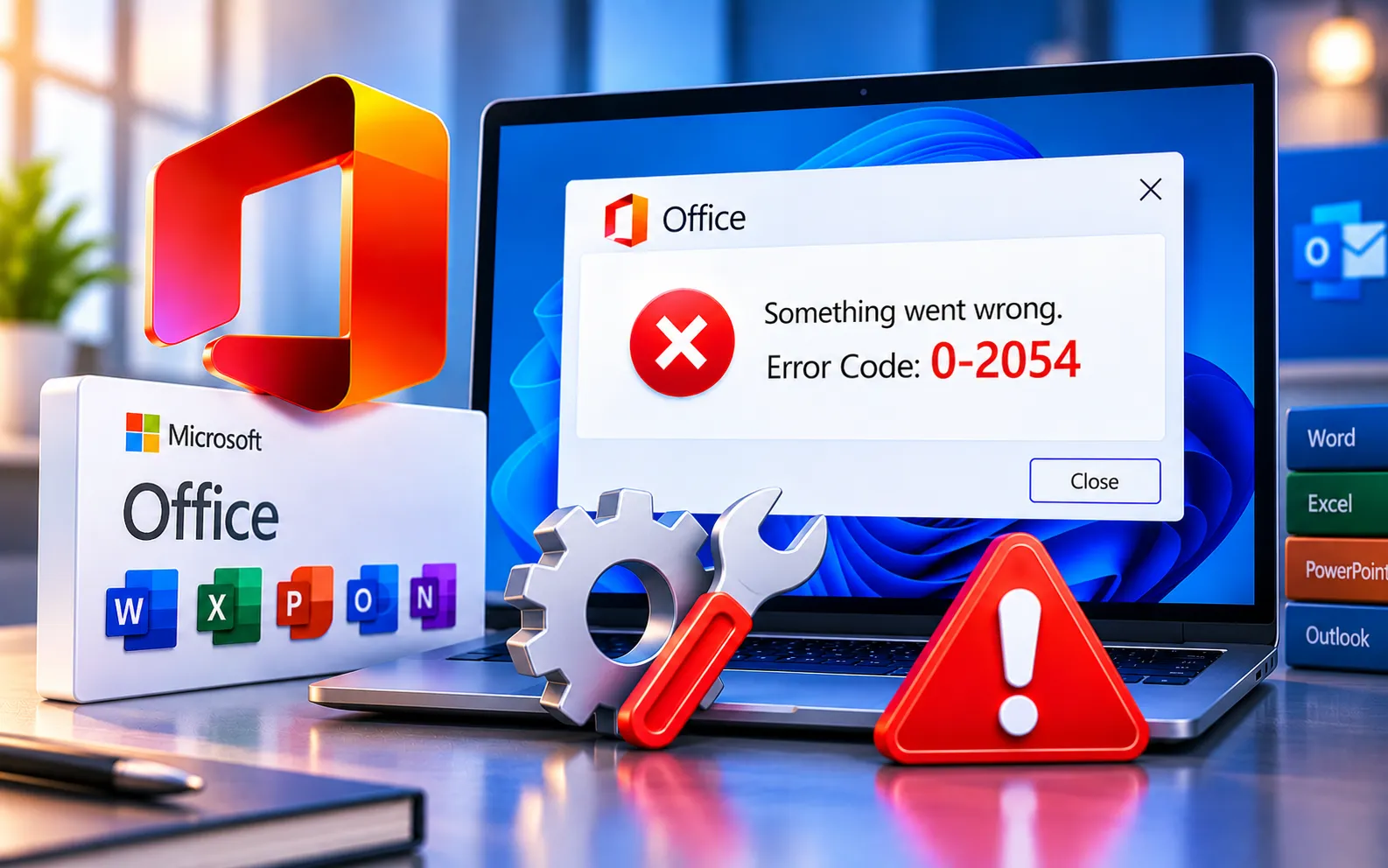
Microsoft Office has become an integral part of our professional and personal lives, but encountering error codes can be frustrating. Error Code 0-2054 often surfaces during installation or update processes, disrupting the seamless use of applications like Word, Excel, and PowerPoint.
This guide explains the causes of Error Code 0-2054 and provides a comprehensive walkthrough for resolving it.
Understanding Error Code 0-2054
Error Code 0-2054 indicates issues within the installation or update procedures of Microsoft Office. Users may encounter it when installing the software, applying updates, or even while using the applications.
Incomplete installation — an incomplete or corrupted Office installation is a common trigger. If any component is missing or damaged, it can lead to this error.
Network issues — unstable internet connections or interruptions during installation or update can contribute to this error. A consistent, robust connection is essential.
Outdated Office version — using an outdated version can expose you to various errors, including this one. Regularly updating Office ensures security patches and performance improvements are applied.
Here’s how to fix Error Code 0-2054:https://unlicensedproduct.com/windows-update-error-code-0x8024a206
Check your internet connection
Make sure your connection is stable, since network interruptions can impede the installation or update process. Restart your router, check for other devices hogging bandwidth, and attempt the installation again.
Update Microsoft Office
Open any Office application, click File → Account, look for “Update Options,” and click “Update Now.” Follow the on-screen instructions — updating to the latest version often resolves compatibility issues behind this error.
Repair the Office installation
If the error persists, repairing the installation may help. Open Control Panel → Programs → Programs and Features, locate Microsoft Office, right-click and choose Change, then select the Repair option and follow the prompts.
Reinstall Microsoft Office
If repairing doesn’t resolve the issue, uninstall Microsoft Office completely and reinstall it. Have your product key or Microsoft account credentials ready beforehand to avoid activation issues afterward.
Use the Office Support and Recovery Assistant
Microsoft’s dedicated Support and Recovery Assistant tool diagnoses and fixes various Office-related problems. Download it from the official Microsoft website and follow the guided steps to identify and resolve issues.
Still Not Resolved?
Error Code 0-2054 can be a hurdle, but checking your internet connection, keeping Office updated, and using tools like the Support and Recovery Assistant resolve it in most cases. If the problem persists, our experts are here to assist you — Chat with a specialist — for more technical support.
We are an independent technical support provider and are not affiliated with, endorsed by, or sponsored by Microsoft.
FAQ
What causes Office Error Code 0-2054?
It’s usually caused by an incomplete or corrupted installation, an unstable internet connection during setup, or running an outdated version of Office.
Should I repair Office before reinstalling it?
Yes. The built-in repair option fixes most common issues without needing a full uninstall — reserve a complete reinstall for when repair doesn’t resolve the error.
What do I need before uninstalling and reinstalling Office?
Have your product key or Microsoft account credentials ready beforehand — this avoids activation issues once you reinstall.
What does the Office Support and Recovery Assistant do?
It’s Microsoft’s official diagnostic tool that automatically identifies and fixes many common Office installation, update, and activation problems.
Tags: 0-2054, 0-2054 (0), error 0-2054, Error Code 0-2054, error code: 0-2054 (0), installation Error Code 0-2054, microsoft install error code 0-2054, Microsoft Office Error Code 0-2054, Office Error Code 0-2054, Office installation Error Code 0-2054
